How to Connect the Herz P1 Smart Scale to the Unique Health App
This complete guide will walk you through the correct setup process to ensure a smooth and successful connection.
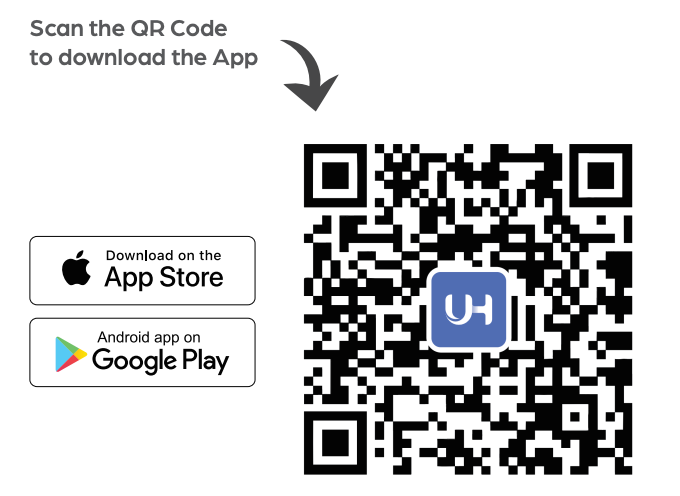
Step 1: Download the Unique Health App
-
Open the App Store (iPhone) or Google Play Store (Android).
-
Search for “Unique Health” in the App Store or Google Play.
-
Download and install the app.
Step 2: Create Your Account
-
Open the Unique Health app.
-
Sign up for a new account or log in.
-
Enter your personal details:
-
Age
-
Height
-
Gender
⚠️ This information is important because it helps improve the accuracy of your body composition measurements.
Step 3: Properly Connect the Herz P1 Smart Scale
This is the most important step.
Turn On Bluetooth (and GPS if prompted)
-
Go to your phone’s Settings.
-
Turn on Bluetooth.
-
If your phone requests Location/GPS access, allow it (this is required for Bluetooth scanning on some devices).
-
✅ Make sure you are connected to the internet (Wi-Fi or mobile data). The app requires an active internet connection to complete pairing and sync data.
Wake Up the Scale
-
Place the scale on a flat, hard surface.
-
Step lightly on the scale to turn it on.
-
Wait until the display lights up.
The scale must be awake before pairing.
Connect Through the App (NOT Phone Bluetooth Settings)
🚫 Do NOT connect the scale from your phone’s Bluetooth menu.
Instead:
-
Open the Unique Health app.
-
Go to Home Page.
-
Tap Mine.
-
Select Device Management.
-
Tap Add Device.
-
Choose Weighing Scale.
-
Make sure you are near the scale.
-
Keep the scale awake by stepping on it if needed.
-
Follow the on-screen instructions.
Confirm Connection
Once connected:
-
The scale will appear under My Device Management.
-
The app will confirm it is successfully paired.
-
Future measurements will sync automatically when you step on the scale.
Common Issues & Solutions
Problem: Scale not showing in the app
-
Make sure the scale is awake.
-
Move closer to the device.
-
Restart Bluetooth.
-
Restart the app.
Problem: Accidentally paired in phone Bluetooth
-
Go to your phone’s Bluetooth settings.
-
“Forget” or remove the scale.
-
Reconnect properly inside the Unique Health app.
Problem: Connected but Not Syncing
If your scale shows as connected but your measurements are not syncing to the app, follow these steps:
-
Open the app first before stepping on the scale.
-
Make sure you are logged into your account.
-
Check Device Management and confirm that the scale appears as a connected device.
If the issue persists even after closing and reopening the app:
-
Go to Mine → Device Management.
-
Remove or unbind the Smart Scale.
-
Reconnect the scale by selecting Add Device → Weighing Scale.
-
Wake the scale by stepping on it and complete the pairing process again.
Reconnecting the device usually resolves syncing issues.
✅ Important Tips to Avoid Connection Problems
Ensure Internet Connection
-
Confirm the phone is connected to Wi-Fi or mobile data.
-
The app requires internet access to pair and sync measurements.
Turn On Bluetooth
-
Go to phone Settings.
-
Make sure Bluetooth is enabled.
-
Stay within 1–3 feet of the scale during setup.
Do NOT Pair in Phone Bluetooth Settings
-
The scale must be connected inside the app only.
-
If paired in phone Bluetooth:
-
Go to Bluetooth settings.
-
Tap the scale.
-
Select Forget or Remove Device.
-
Reconnect inside the app:
Mine → Device Management → Add Device → Weighing Scale
Check App Permissions
Go to:
Mine → Permission Management
Make sure the following are enabled:
-
Location
-
Bluetooth
-
Network
Need Help?
If you need assistance:
-
Email: support@herzp1.com
-
Phone: (877) 309-3614
When contacting support, include your order number and a short description of the issue.
Still need help? Create a support request with our customer service team and we'd be happy to help.